The Math Web site is optimized for IE 5 ou IE 6. (Internet Explorer).
Some features use JAVA applets.
To view them, here it is necessary to :
For IE 5 :
IE5 is equipped with the JVM (Java Virtual Machine) to play the Java applets.
Check this:
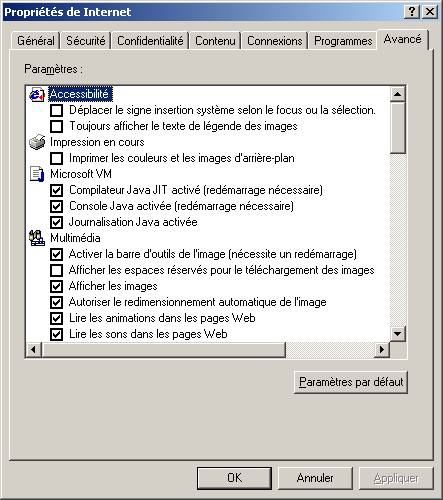
Start IE 5, then in the top menu, go to: Tools -> Internet Options -> Advanced tab
Check in the list under the heading "Microsoft VM" that box "Java JIT compiler enabled",
est cochée.
Restart the computer to take into account the change.
For IE 6:
The version of IE 6 is not equipped with the JVM and it should install .
A necessary component to access the site is not always present on workstations equipped with Windows, especially Windows XP. It is the JVM (Java Virtual Machine) from Microsoft.
Before starting the steps outlined below, we recommend that you print this page.
Step n° 1 : Check for presence of compounds essential.
You can check for this component on your computer by doing precisely the following :
Click on the menu " Start " from the bar
Windows task the menu offers a list of
programs to run with the option " Run ".
Click the option " Run " a
window titled " Run " appears on the screen so you
invitation to enter the name of a program to run.
In the area " Open " of the program window
" Run ", type the exact name of the program to start : wjview
Then click on "OK"
Two scenarios are possible :
A help window WJView appears on the screen. In this case,
then you have the component and it is not necessary
in step n°2. Please skip to step n° 3, without
through step 2 .
Let the message "the wjview file is not found (…)"
appears on the screen, then this component is not available. It is therefore
MANDATORY to proceed to download the component for
access the site for this, please perform the operations described
the next step .
Step n° 2 : Downloading and Installing
essential component.
If you've noticed the absence of the component on your position with
performed the operations of the first stage to point No. 6, then
you must download and install
Component: :
When you click on the link below, you will need perform the following operations :
Select option " Run this program from its
current location " to proceed with the immediate installation
Component and click on " OK "
Accept the installation of the component " Microsoft VM "
following the message " Would you install Microsoft VM ? "
Read the license agreement appears on the screen
Click the button " Yes " if you agree
terms of the contract (in case of refusal of your hand, access to site
télédéclaration and consultation will always be impossible)
Several messages scroll across the screen to arrive at the end of
installation with the following message : " The installation is
completed ". Then click on " OK ".
A final message appears offering to restart
Now your computer. Accept this choice. And your computer
must restart.
Once restarted the computer completely, go to Step
next.
To conduct the operations described above are inherent in
Download and install the component "JVM
"Microsoft Windows XP, NT and 9x, click here :
As with any installation of new components
software on your workstation, you are advised to apply
regular security patches (Windows Update)
Step n° 3 : Checking Internet options of
Internet Explorer browser .
In all cases, follow the verification parameters
Internet Options Internet Explorer by doing
follows :
Open your Internet Explorer browser
From the browser menu select
" Tools " from the menu.
From this menu, select " internet Options
" ; a window appears
Click on the tab " Advanced " This
window and the list of parameters are presented.
Locate the section " Microsoft VM " and the box
Select " Java JIT compiler " ; Check
this box if you have not already done so.
Locate any other paragraphs and checkboxes
corresponding to other JVM as "use the plug-in …
Sun ". Uncheck those boxes if any if they exist
and if you have not already done so .